How to Compile and Run C++ Programs in Notepad++: A Comprehensive Guide for Beginners
Updated

Welcome to our beginner's guide to compiling and running C++ programs in Notepad++. Notepad++ is a free source code editor that supports many programming languages, including C++. It doesn't include a built-in compiler, but you can still write, compile and run C++ programs from it by installing the free g++ compiler (part of MinGW-w64). Because it's lightweight and easy to use, Notepad++ is a great choice for beginners learning C++. In this guide, we'll take you through every step, from installing the compiler to running your first program. Let's get started!
Step 1: Install Notepad++
If you haven't installed Notepad++ yet, download it from the official website and install it on your computer.
Step 2: Install the g++ Compiler
To compile C++ code on Windows, you need g++, the C++ compiler from the GNU Compiler Collection (GCC). The GCC project itself doesn't provide Windows installers, so the easiest way to get it is through MinGW-w64, using either MSYS2 or WinLibs. Both install gcc (for C) and g++ (for C++) together.
We cover the full installation, including adding the compiler to your PATH, in How to Compile Your C Code in Notepad++ (Steps 1 and 2). Once you've done that, open a new Command Prompt and check that g++ works:
g++ --versionStep 3: Configure Notepad++ for C++
These optional settings make working with C++ files a little smoother:
- Open Notepad++ and go to Settings › Preferences….
- Select New Document and set Default language to C++. New files will now use C++ syntax highlighting automatically.
- Select Default Directory and choose the folder where you want to keep your C++ projects, for example
C:\cpp-projects. Avoid folders with spaces in their names. - Click Close to save your changes.
Step 4: Write Your C++ Code
Create a new file with Ctrl + N and type your first program:
#include <iostream>

int main() {
    std::cout << "Hello, world!" << std::endl;
    return 0;
}Step 5: Save Your C++ File
Save the file with the .cpp extension. For example, if your program is called "hello_world", save it as hello_world.cpp. Notepad++ will apply C++ syntax highlighting as soon as the file is saved.
Step 6: Compile Your C++ Program
- In Notepad++, go to File › Open Containing Folder › cmd. A Command Prompt opens directly in the folder where your file is saved.
- Type the following command and press Enter:
g++ hello_world.cpp -o hello_world.exeIf nothing is printed, your program compiled successfully and hello_world.exe now appears in the folder. If there are mistakes in your code, g++ shows the errors with line numbers.
Step 7: Run Your C++ Program
In the same Command Prompt window, type the name of your program and press Enter:
hello_world.exeYou'll see "Hello, world!" printed on the screen. Congratulations! You've compiled and run your first C++ program from Notepad++.
Bonus: Compile and Run with One Shortcut
Typing commands every time gets old quickly. Go to Run › Run… (F5), paste this command, then click Save… and give it a name and keyboard shortcut:
cmd /k g++ -std=c++17 -Wall "$(FULL_CURRENT_PATH)" -o "$(CURRENT_DIRECTORY)\$(NAME_PART).exe" && "$(CURRENT_DIRECTORY)\$(NAME_PART).exe"From now on, save your file and press your shortcut to compile and run it instantly.
Useful g++ options
-Wall: shows helpful warnings about likely mistakes.-std=c++17or-std=c++20: chooses which C++ standard to use.-g: adds debugging information.-O2: optimizes your program to run faster.
Conclusion
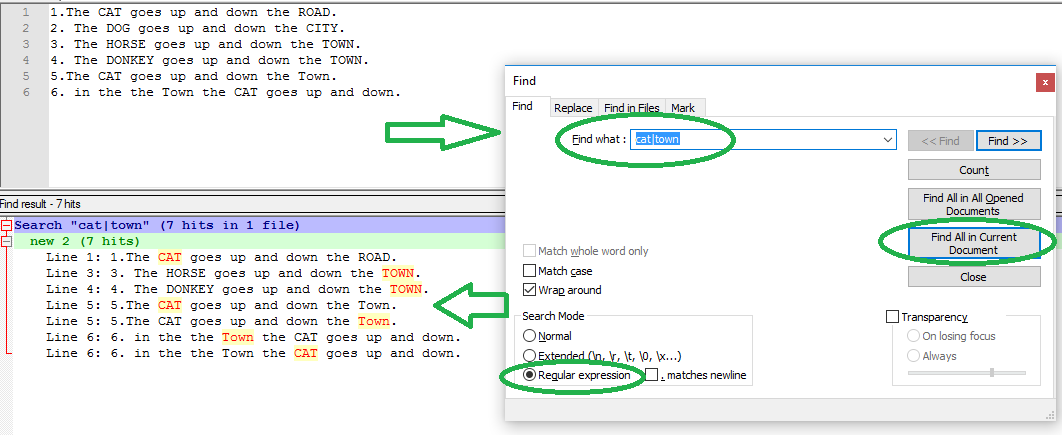
Notepad++ gives beginners a simple, distraction-free way to write C++. With g++ installed and a saved Run command, you can compile and run your programs in seconds. Keep in mind that Notepad++ is not a full IDE: it doesn't include a debugger or project management. As your projects grow, you may want to try a more advanced editor such as Visual Studio Code (see our list of Notepad++ alternatives). For more productivity tips, learn how to search for multiple words at once in Notepad++.